[ EXPORT GUIDE ]
Export GPT to Grok
Moving a conversation from ChatGPT to xAI's Grok requires exporting from OpenAI, formatting the transcript, and importing into Grok. This guide covers the full process.
Manual way vs AISwipe Extension
AISwipe works across all AI Chat Providers
Automatic context compression to speed up your chats
No more manual clicks and exports. Find any conversation from any platform instantly.
Real-time update if your chat is changed in source
Interested? Join our waitlist and get 1 month of free usage
✨ Or take the shortcut
Join our waitlist
We're building an extension that lets you cross-manage your chats across all providers.
1 month free for waitlist membersPerson-to-person support with founders90% done · shipping by end of month
Not interested — feel free to do it the manual way
Prerequisites
- Accounts and access: Active ChatGPT account with the target conversation, and a Grok (xAI) account (sign in via X/Twitter at grok.com). Ensure you can view the full ChatGPT thread.
- Chat history: For long conversations, scroll to the beginning or download chat data. In ChatGPT web: Settings → Data Controls → Export Data.
- Tools: A basic text editor (Notepad, TextEdit) or app to paste and clean text. Browser extensions like Superpower ChatGPT add an Export button for Markdown/JSON.
Exporting from ChatGPT
From chat.openai.com (UI)
- Copy/paste: Open the conversation, select and copy the dialogue text, paste into a text editor or your target platform. Quick for small chats but loses timestamps and formatting.
- Official Data Export: Go to Settings → Data Controls → Export Data. Confirm, then download the emailed ZIP (link expires after 24h). Open chat.html to view or copy chats, or inspect conversations.json for structured data.
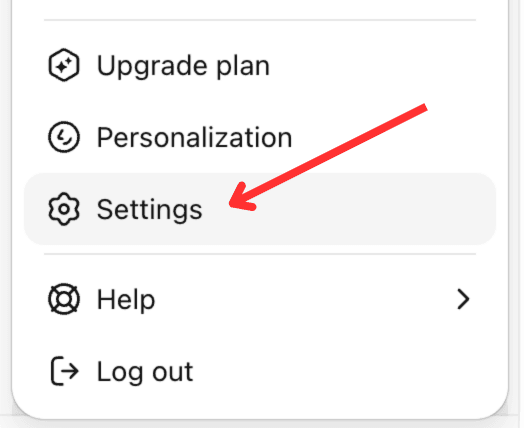
Step 1: Click profile → Settings 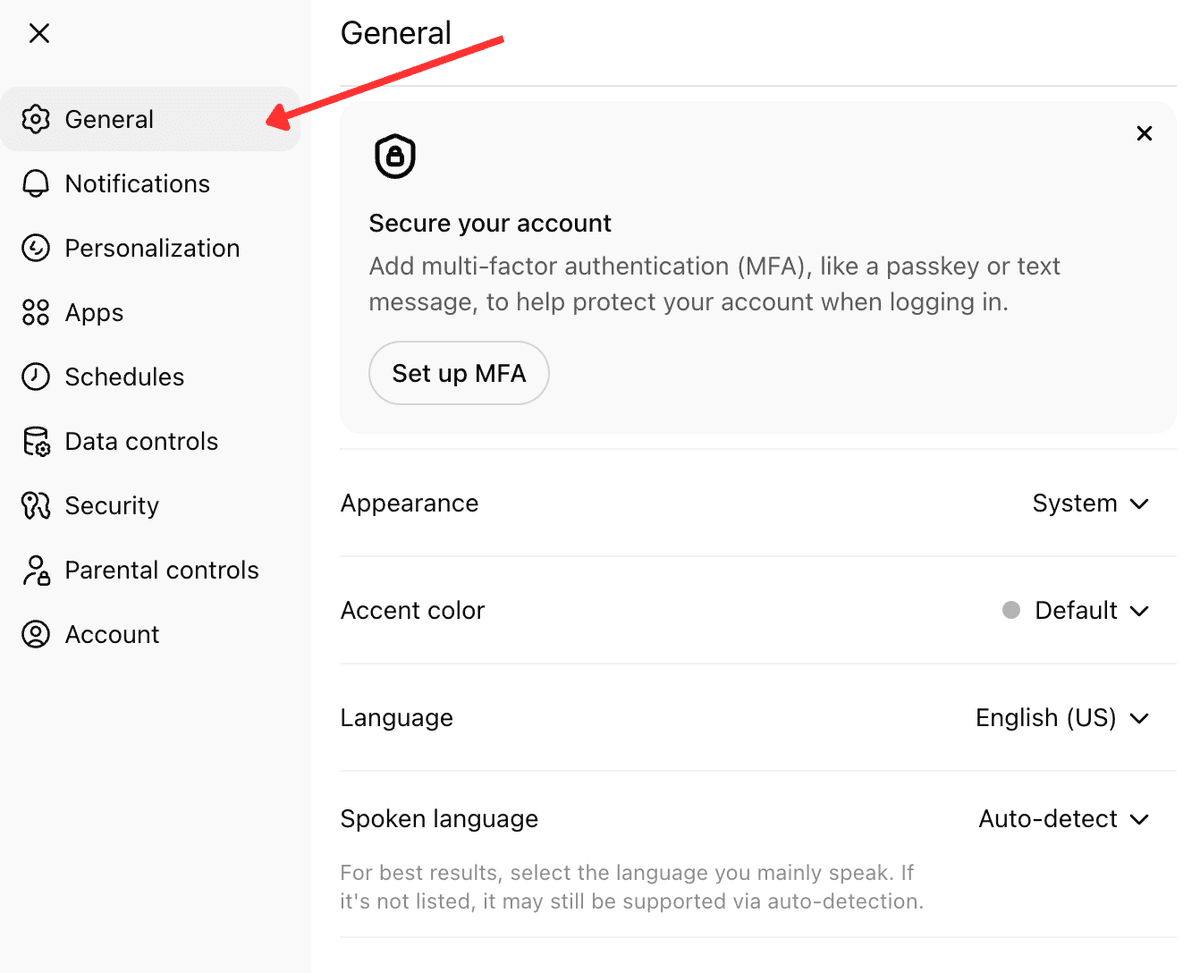
Step 2: Settings panel with sidebar 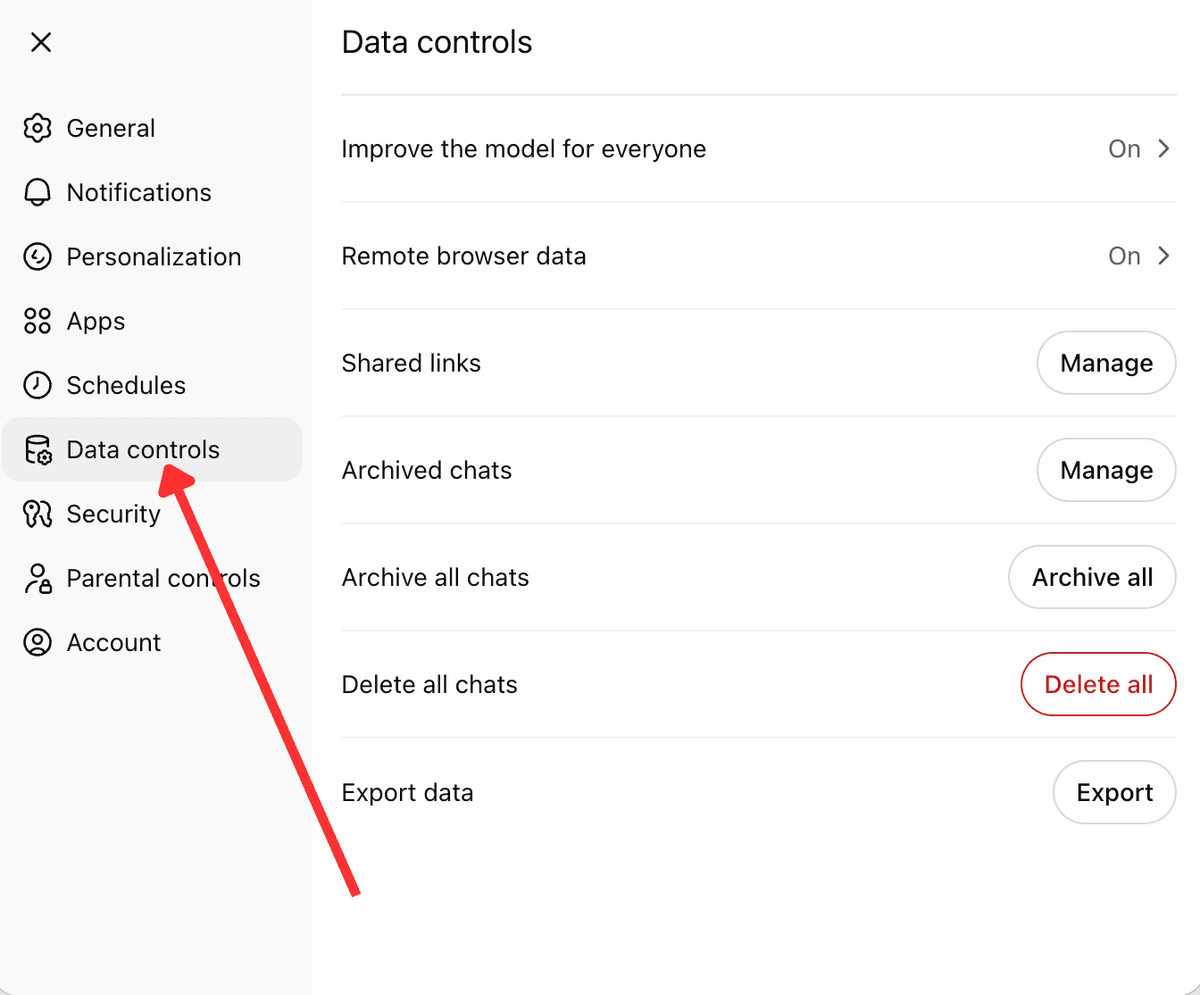
Step 3: Data controls → Export data 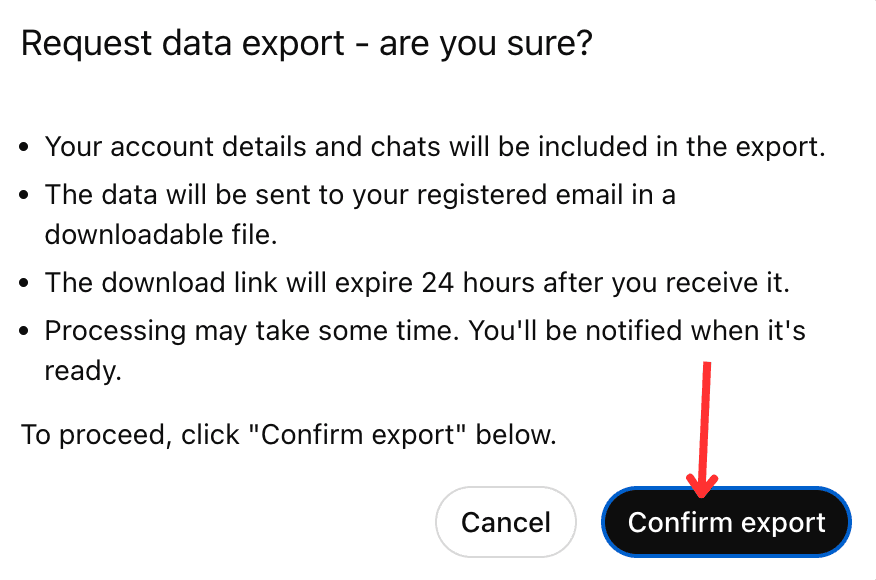
Step 4: Confirm export
From OpenAI API / JSON
If you used the ChatCompletion API, your logs are in JSON. Each message has role (user, assistant, system) and content. Extract user and assistant messages in order. Prefix system instructions with System: The Data Export conversations.json is nested—use a script to flatten it into an ordered list of messages.
Prepare the text for Grok
In your editor, clean up the transcript:
- Remove extra UI, date/time stamps, system messages (or include them explicitly), and navigation clutter.
- Structure each exchange: prefix user queries with "User:" and ChatGPT responses with "Assistant:" or similar. This helps Grok follow who said what.
- If the conversation began with a hidden system prompt, add it at the top (e.g. System: You are a helpful assistant).
- Anonymize sensitive info: remove personal names or private data before importing to Grok.
Importing into Grok
- Start a new Grok chat: Go to grok.com (or the Grok app) and open a fresh conversation.
- Paste the conversation: Paste the entire cleaned text into the new chat input. Grok has no built-in import—the only way to give it context is to paste as an initial prompt. Include formatted turns ("User: …", "Assistant: …") so Grok sees the dialogue history.
- Continue the conversation: After pasting, prompt Grok to continue. For example: "Based on the conversation above, please continue the discussion" or ask the next question you intended. Grok's context window is very large (up to 2M tokens), but be aware of extreme lengths.
Common pitfalls & troubleshooting
- Context limits: All LLMs have finite context. Even with Grok's huge window, extremely long threads may be truncated. If Grok ignores early parts, trim or summarize older turns.
- Lost system prompts: Include crucial system instructions (e.g. "Explain step by step…") at the start, or Grok may not follow the same rules.
- Formatting errors: Pasted text can be mishandled (quotes, bullets stripped). If the response is garbled, adjust the format—plain text is safest.
- Different styles: Grok's personality differs from ChatGPT (more casual, humorous). For consistency, ask it to "answer formally" or remind it of the tone.
- Stopping mid-conversation: If Grok stops or seems confused, split into two messages: first paste the dialogue, then send a separate question.
Privacy & security considerations
- Data ownership: You own your inputs/outputs in both ChatGPT and Grok. Any third party (including browser extensions) that accesses your chats poses a privacy risk. Use trusted tools or work offline with a text editor.
- AI data use: Per xAI's privacy policy, your Grok conversations may be used to improve their models. Be mindful when pasting sensitive info.
- Personal data: Remove personal or sensitive details before transferring. Avoid sharing private images or confidential documents.
- Secure handling: Store the ChatGPT export ZIP and intermediate files safely. Use encryption or private accounts when emailing or uploading.
More export guides
Move your ChatGPT conversations to other AI platforms:


