Export GPT to Claude
Transferring a ChatGPT conversation into Claude requires exporting from OpenAI, cleaning and formatting the text, then importing into Claude. This guide walks through each step.
Manual way vs AISwipe Extension
Interested? Join our waitlist and get 1 month of free usage
Join our waitlist
We're building an extension that lets you cross-manage your chats across all providers.
Not interested — feel free to do it the manual way
Exporting from ChatGPT
From chat.openai.com (UI)
- Copy/paste: Open the conversation, select and copy the dialogue text, paste into a text editor or your target platform. Quick for small chats but loses timestamps and formatting.
- Official Data Export: Go to Settings → Data Controls → Export Data. Confirm, then download the emailed ZIP (link expires after 24h). Open chat.html to view or copy chats, or inspect conversations.json for structured data.
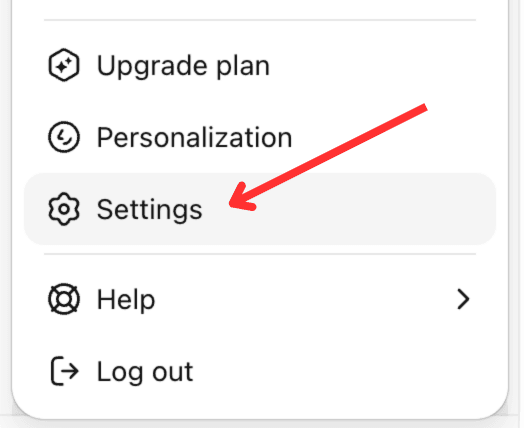
Step 1: Click profile → Settings 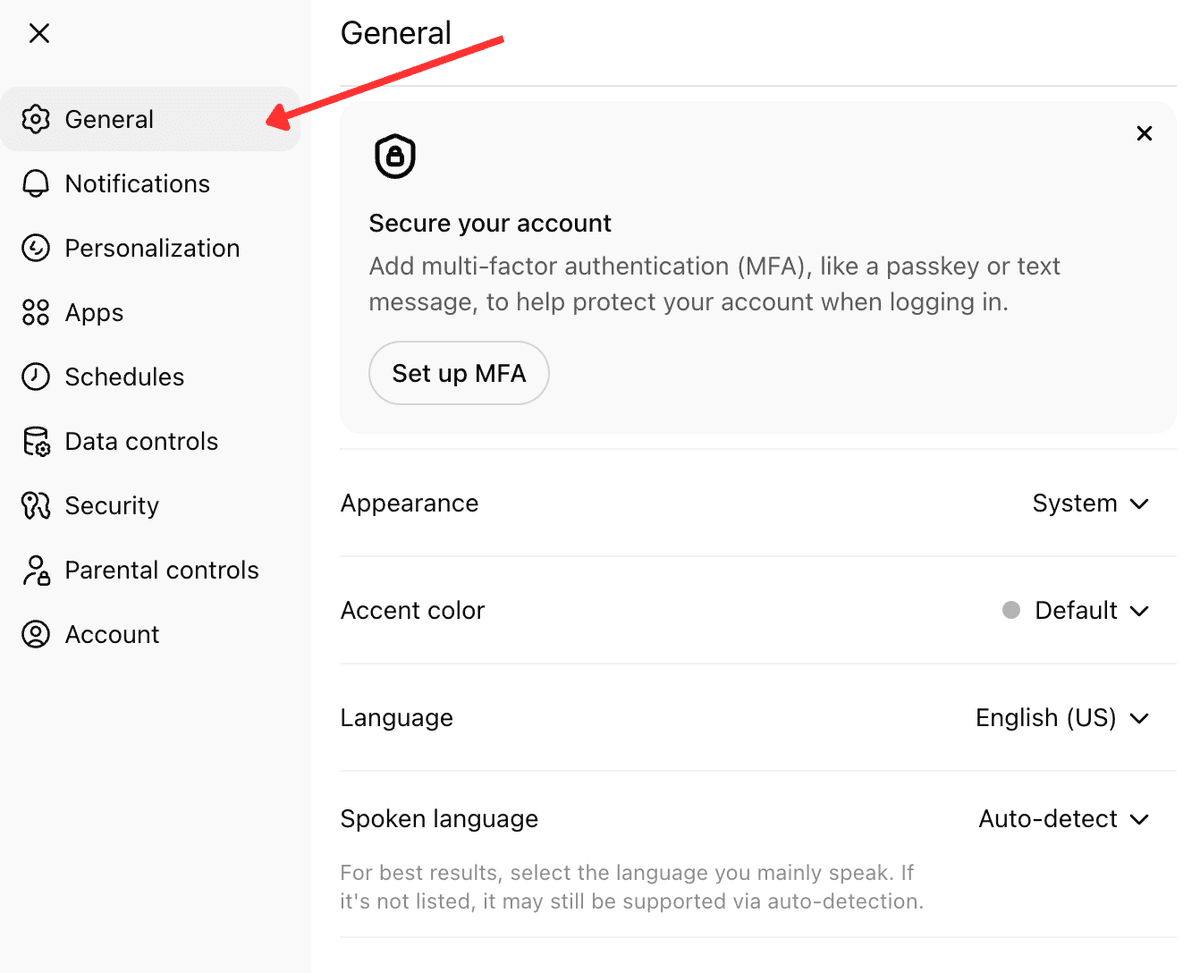
Step 2: Settings panel with sidebar 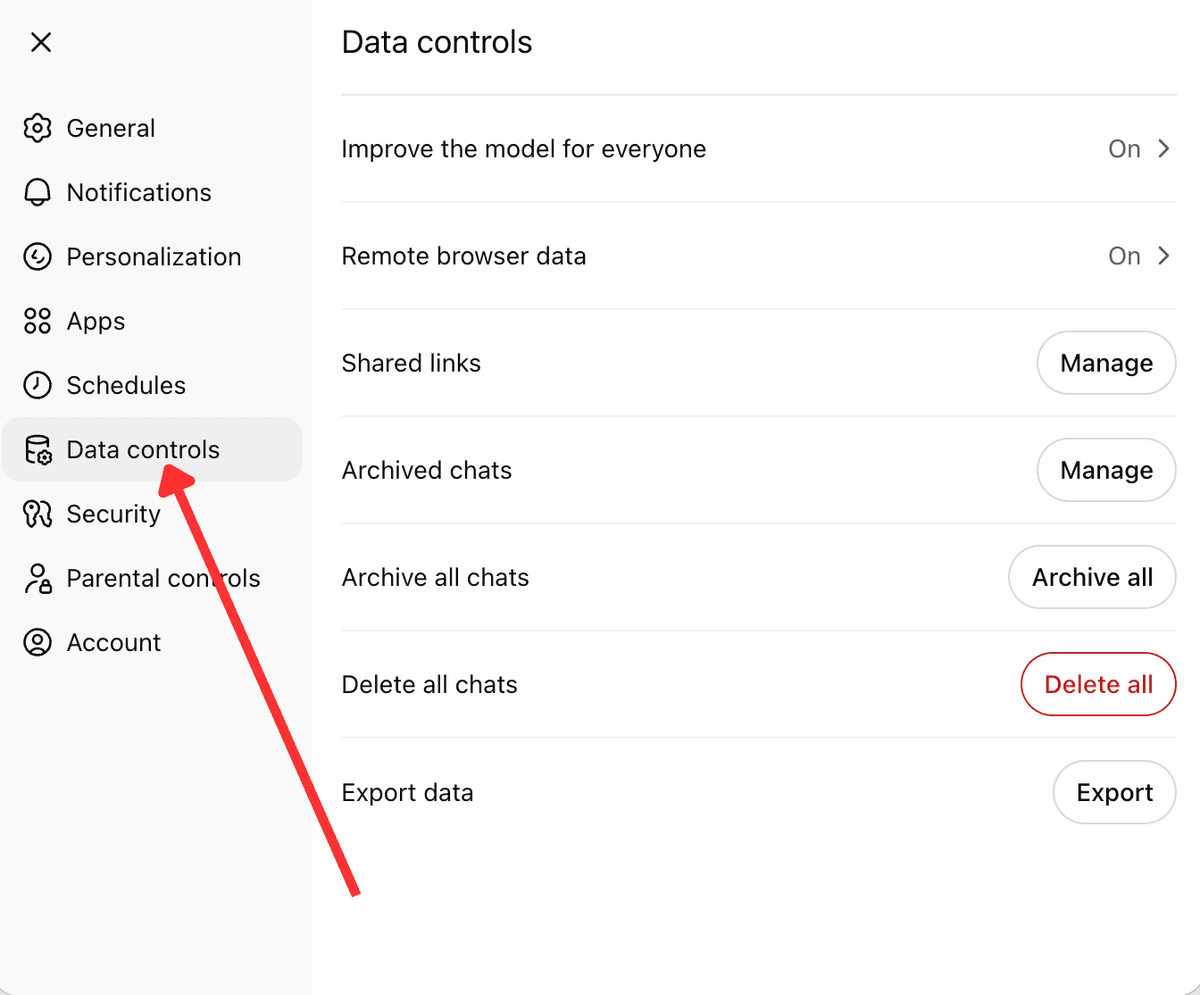
Step 3: Data controls → Export data 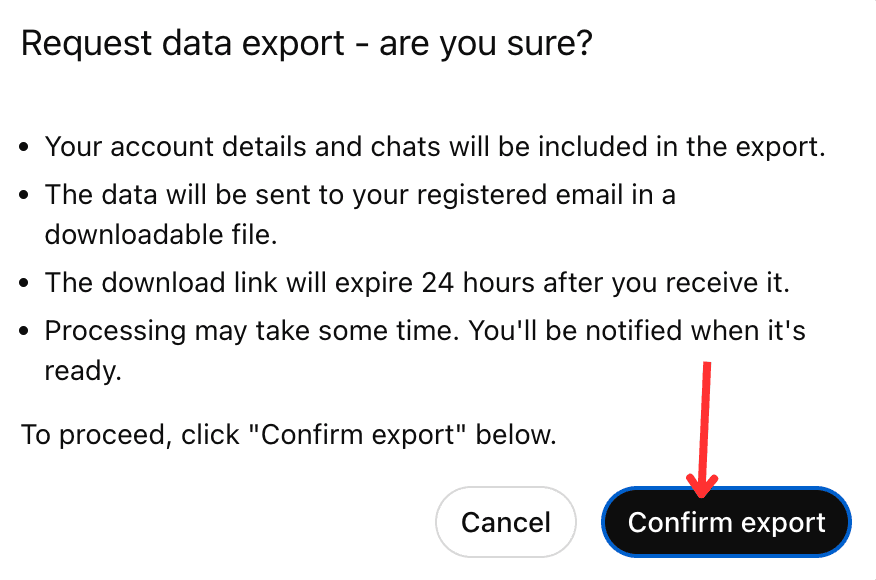
Step 4: Confirm export
From OpenAI API / JSON
If you used the ChatCompletion API, your logs are in JSON. Each message has role (user, assistant, system) and content. Extract user and assistant messages in order. Prefix system instructions with System: The Data Export conversations.json is nested—use a script to flatten it into an ordered list of messages.
Clean and format the conversation
Once you have the raw conversation text or file, prepare it for Claude:
- Remove system/internal messages: Delete any lines labeled system or similar. Claude does not use OpenAI's system prompts.
- Convert to readable text: If you exported JSON or HTML, strip the markup. Save as .txt or .md; Markdown preserves formatting. Add blank lines between turns. Label speakers (e.g. **User:** and **Assistant:**).
- Handle attachments: Images and files are not carried in a text export. Save each attachment and use Claude's upload feature (paperclip) to attach them to the new chat.
- Privacy check: Scan for personal/private information. Redact names, emails, etc. Uploading to Claude may share that data.
Tip: You can ask ChatGPT to summarize the conversation for transfer. For example: "If I wanted to export this chat to a different AI, how would you explain the project so the new AI could pick up where you left off?" ChatGPT can produce a concise recap to feed into the new AI when token limits are a concern.
Import or recreate the conversation in Claude
- Start a new Claude chat: Go to Claude.ai and open a new conversation.
- Upload or paste: Use the paperclip to attach your cleaned transcript (TXT/MD), or paste the text into Claude's message box. Claude supports Markdown and plain text.
- Give instructions: After pasting or uploading, add a prompt like: "The text above is a previous conversation with ChatGPT. Please continue the chat from where it left off." or "Summarize the above conversation." This tells Claude how to use the imported text. You can adapt this by saying the file is a conversation, not personal memory.
- Continue the chat: After submitting, Claude processes the context and should respond as if continuing that conversation.
Because Claude may have different knowledge and style, double-check important details. If Claude veers off, add clarifications (e.g. explicitly mark user vs. assistant roles) or feed the key points again.
Verify and test
- Verify comprehension: Ask Claude to briefly recap the conversation you just imported. Ensure it captured the right context and key details.
- Test the flow: Pose a new user question that was next in the original GPT chat. See if Claude's reply makes sense. If not, adjust the prompt or break the conversation into smaller parts.
- Adjust formatting if needed: If Claude ignores some parts, reorganize the text. Split a very long conversation into two uploads, or remove casual chat that isn't relevant.
Troubleshooting & common pitfalls
- Chat too long: Claude has input limits. Trim or summarize; focus on the essential Q&A.
- Formatting errors: If Claude outputs unrelated content, check for stray JSON or markup. Only plain conversation text should be present.
- Forgetting context cues: If you didn't tell Claude the text is a prior conversation, it may treat it as random info. Always add a clear instruction after upload or paste.
- Missing attachments or code: Code blocks or images from GPT won't appear automatically. Re-upload them and ensure Claude can interpret them (Claude can read code but may not run it).
- Privacy leaks: Once imported, Claude's instance will have that conversation text. If it contains private data, avoid posting or sharing the Claude chat publicly.
More export guides
Move your ChatGPT conversations to other AI platforms: