[ EXPORT GUIDE ]
Export GPT to Gemini
This guide explains how to manually transfer conversation history from ChatGPT to Google Gemini: prerequisites, export workflows, preparation steps, import options, and troubleshooting.
Manual way vs AISwipe Extension
AISwipe works across all AI Chat Providers
Automatic context compression to speed up your chats
No more manual clicks and exports. Find any conversation from any platform instantly.
Real-time update if your chat is changed in source
Interested? Join our waitlist and get 1 month of free usage
✨ Or take the shortcut
Join our waitlist
We're building an extension that lets you cross-manage your chats across all providers.
1 month free for waitlist membersPerson-to-person support with founders90% done · shipping by end of month
Not interested — feel free to do it the manual way
Key prerequisites and assumptions
- Access to chat history: You must be logged in to chat.openai.com or have JSON outputs from the OpenAI API.
- Export formats: ChatGPT provides Data Export (Settings → Data Controls) that sends a ZIP with chat.html and conversations.json. You can also copy text from an open chat.
- Gemini access: You need a Google account with access to Gemini. For file uploads, you may need Gemini Advanced or the latest app version. Gemini accepts pasted text and attachments (.txt, .md, .json).
- Privacy: Remove or anonymize sensitive data before transferring. There is no direct import of ChatGPT chats into Gemini yet—you re-provide the content manually.
Exporting from ChatGPT
From chat.openai.com (UI)
- Copy/paste: Open the conversation, select and copy the dialogue text, paste into a text editor or your target platform. Quick for small chats but loses timestamps and formatting.
- Official Data Export: Go to Settings → Data Controls → Export Data. Confirm, then download the emailed ZIP (link expires after 24h). Open chat.html to view or copy chats, or inspect conversations.json for structured data.
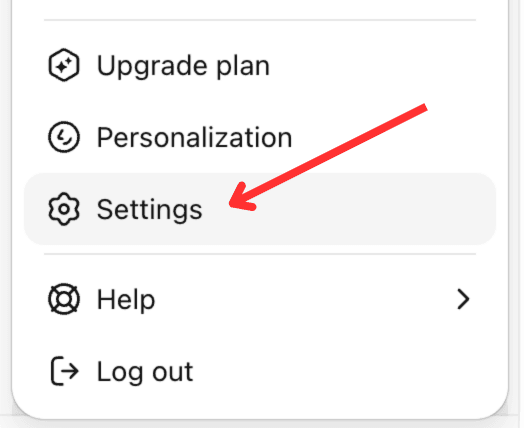
Step 1: Click profile → Settings 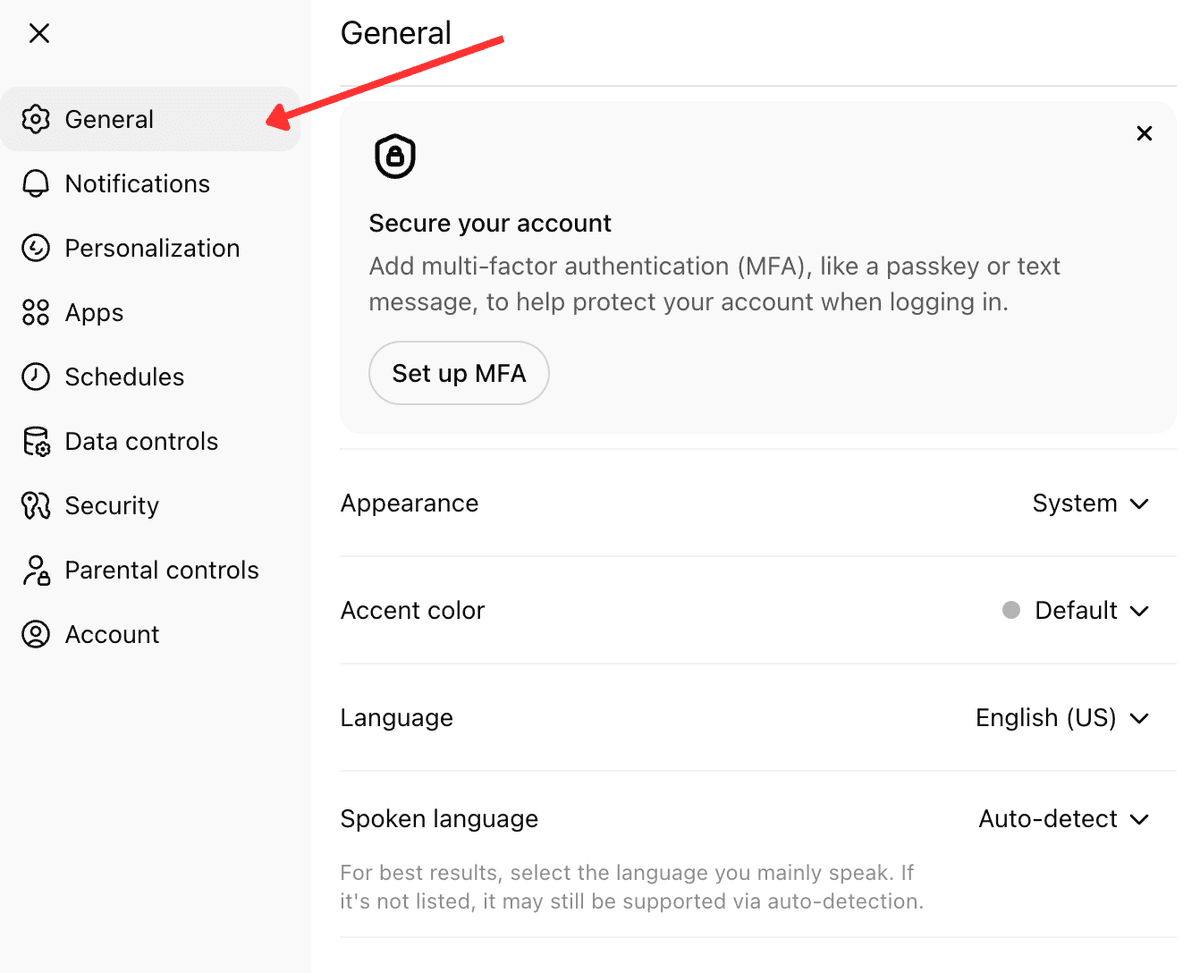
Step 2: Settings panel with sidebar 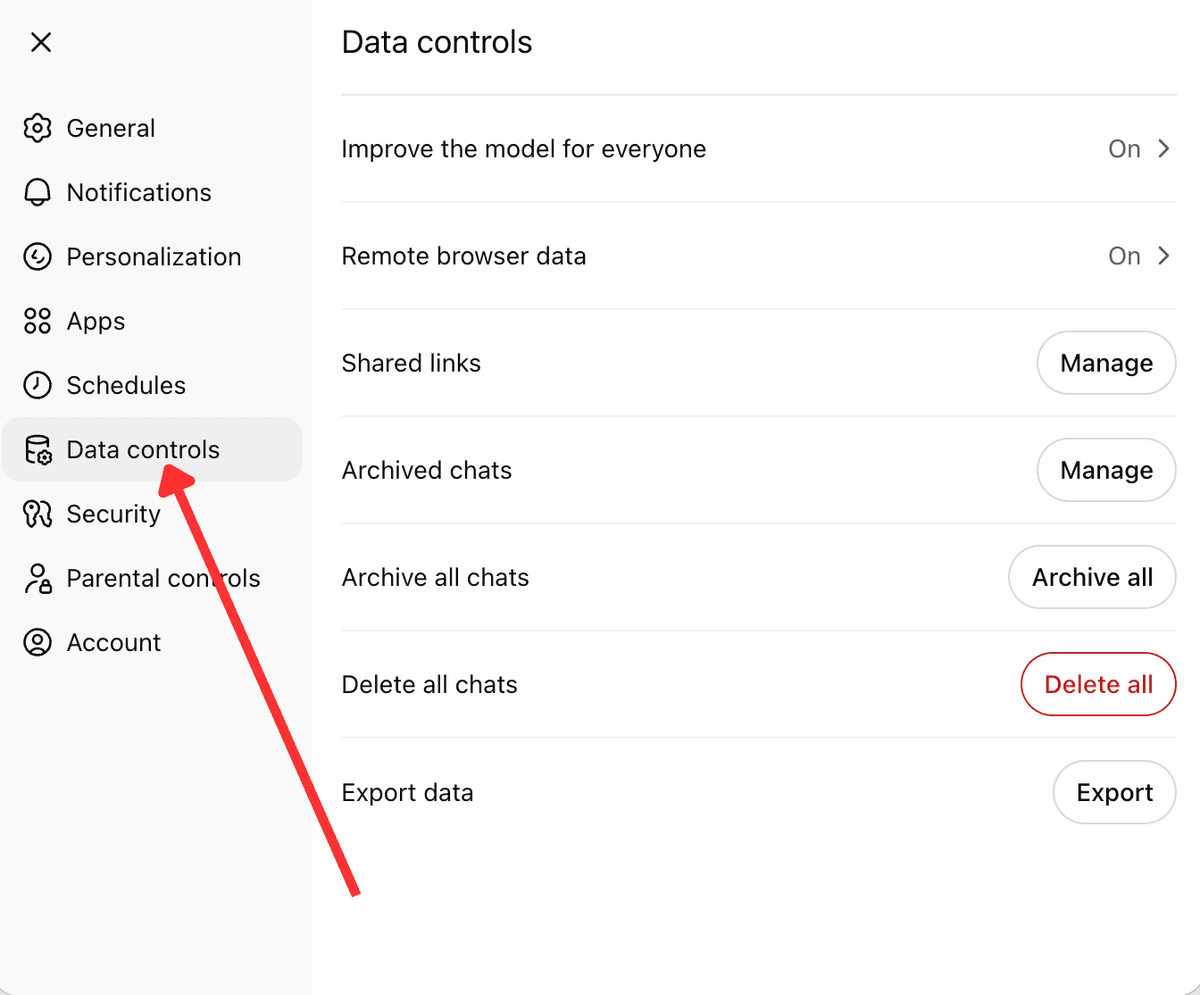
Step 3: Data controls → Export data 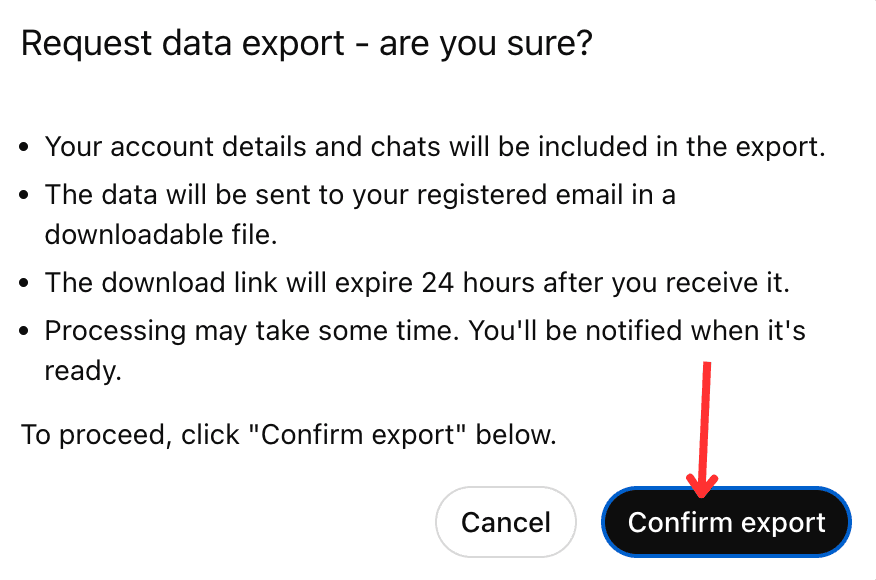
Step 4: Confirm export
From OpenAI API / JSON
If you used the ChatCompletion API, your logs are in JSON. Each message has role (user, assistant, system) and content. Extract user and assistant messages in order. Prefix system instructions with System: The Data Export conversations.json is nested—use a script to flatten it into an ordered list of messages.
Preparing content for Gemini
- Label roles: Prefix each message with the speaker, e.g. "User: …" and "Assistant: …". Add system context at the top as "System: …".
- Attach files or images: For images, download from ChatGPT and upload to Gemini via the paperclip. For URLs, paste them and ask Gemini to fetch or analyze.
- Trim and format: Remove irrelevant UI text. For very long chats, split into sections or summarize parts. Gemini supports large context (~1M tokens), but keep practical interactions manageable.
User: Hello, how do I reset my password?
Assistant: You can reset it by...
Importing into Gemini
Gemini has no direct chat-history import. You can:
- Paste as prompt: Start a new chat, paste the formatted conversation, add a guiding instruction at the top (e.g. "Here is our previous conversation. Please continue or analyze it."), then send.
- Upload files: Click the paperclip icon to upload your transcript (.html, .txt, .json). Ask Gemini to summarize or analyze the file. Best when you want Gemini to read the file as source knowledge rather than continue the dialogue.
Preserving metadata and special notes
- Timestamps: Add manually as [2026-02-13 14:00] if needed; message order and roles matter most.
- System instructions: Start with "System: [instruction text]" so Gemini keeps special directives.
- Context window: Gemini supports ~1M tokens vs ChatGPT's 16–128k. Split very long histories by date or topic if needed.
- Model differences: Gemini may re-interpret differently. Instruct it to "continue as before" for continuity. Be aware of Google's terms regarding content.
Troubleshooting
- Input too large: Paste the most recent exchange or summarize earlier parts; or upload the full transcript as a file.
- Lost context: Prompt with reminders like "Remember the above chat as context."
- Formatting issues: Use clear labels (User/Assistant) and plain text; avoid hidden HTML if copying from chat.html.
- Attachments not parsed: Explicitly ask Gemini to read the file (e.g. "Please analyze the attached PDF.").
- Context not retained: Gemini does not inherit ChatGPT memory—provide necessary background again in summary.
More export guides
Move your ChatGPT conversations to other AI platforms: